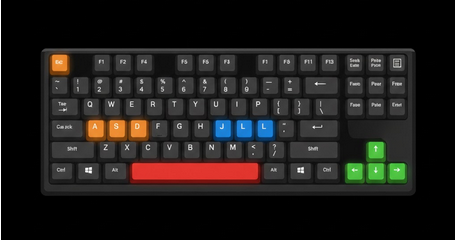
If you usually watch videos on YouTube through your computer, then the keyboard shortcuts will surely be useful for you since they will help you save your time and effort when doing different actions on the website. Thus, you will no longer have to click on little buttons, but will be able to perform commands to navigate around the website easily.
Why Keyboard Shortcuts Are So Important?
Every time you do not need to click anything, you save your time and effort. With the help of keyboard shortcuts, you will be able to control all aspects of video playback without moving your hands at all. Moreover, the shortcuts are more convenient and precise and are especially helpful for regular YouTube users.
Basic Playback Shortcuts
- Spacebar or K – play/pause the video in the current video.
- J – rewind video for 10 seconds.
- L – skip 10 seconds to reach the needed part of the video.
- Left arrow – rewind video for 5 seconds.
- Right arrow – skip for 5 seconds.
- Comma (,) – move back by one frame (when the video is paused).
- Period (.) – move forward by one frame (when the video is paused).
Volume and Display Shortcuts
- Up arrow – increase the volume by 5%.
- Down arrow – decrease the volume by 5%.
- M – mute or unmute the video.
- F – toggle full screen /normal screen.
- T – toggle theater mode (to see video bigger).
- I – toggle mini player mode.
- C – turn subtitles on/off.
Playback Speed and Navigation Shortcuts
- Shift + Period (>) – increase the playback speed.
- Shift + Comma (<) – decrease the playback speed.
- Number keys (0-9) – jump to a certain percentage of the video. If you press 5, the video starts from 50% of its length.
- Home – jump to the beginning of the video.
- End – jump to the end of the video.
- Shift + N – play the next video in a playlist/queue.
- Shift + P – play the previous video in a playlist/queue.
Keyboard Shortcuts Experience Without Ads
If you can watch videos without any ads, it becomes even more comfortable for you. Use uBlock Origin browser extension on your computer to remove all ads from YouTube and navigate on the website without any ads. On your mobile, YouTube Vanced app is the best choice to watch videos without ads on Android as well as MicroG app for account access.
Tips on How to Learn Shortcuts
- Learn basic commands: spacebar, J, K, L, and F.
- Practice every day using shortcuts for your favorite videos.
- Have a cheat sheet of shortcuts near your PC until you learn them.
- Use number keys and speed control shortcuts.
For Whom Keyboard Shortcuts Are Helpful?
- Power users who use YouTube on a regular basis and require maximum efficiency.
- Students who navigate through tutorials/lectures.
- Researchers who need to view videos fast and find needed information.
- People with disabilities who prefer keyboard navigation to mouse controls.
Conclusion
YouTube keyboard shortcuts are a very efficient tool that is ignored by many viewers. With the help of some key combinations, you will be able to increase the speed of navigation and make your experience more efficient. Combining them with ad-free experience provided by YouTube Vanced on mobile, you will get the best YouTube experience ever.